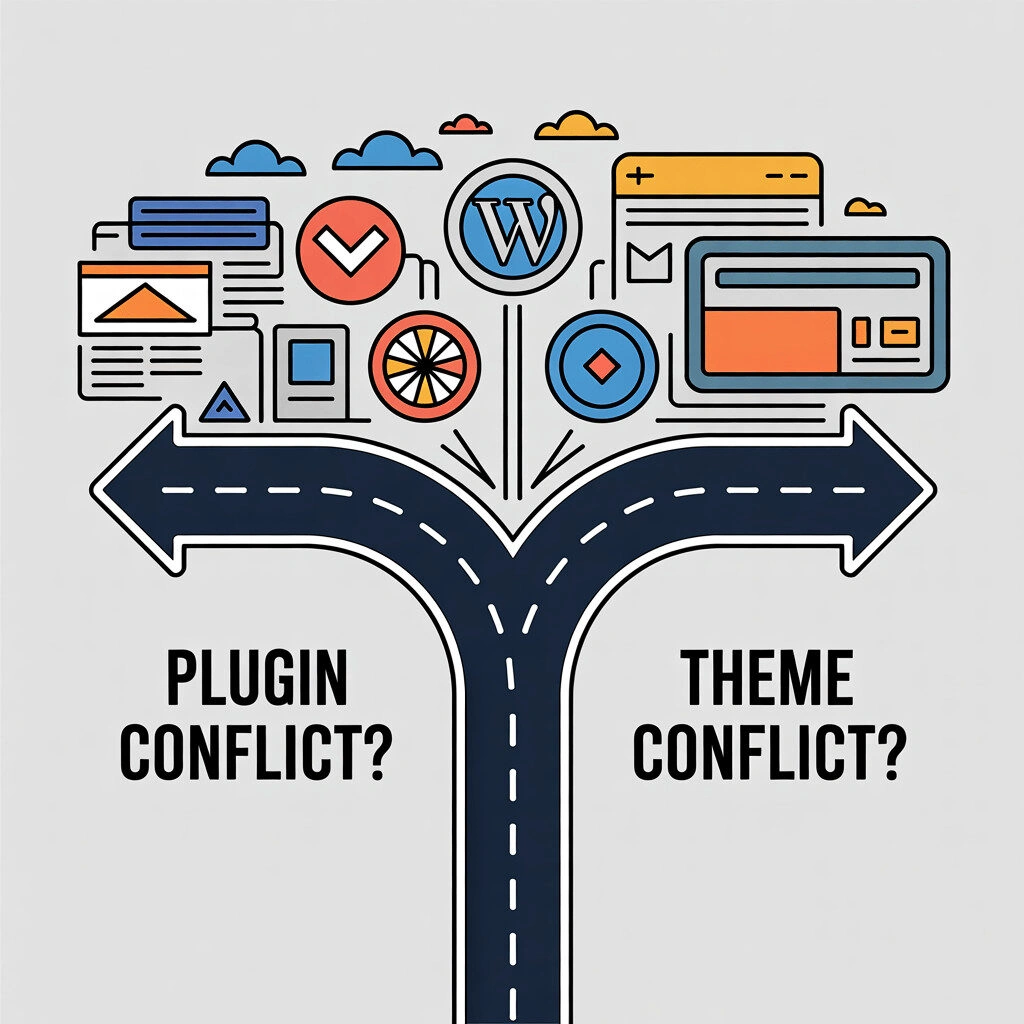
Common WordPress errors are easier to manage when you identify the affected layer and change one variable at a time. Before editing files or switching plugins off, record the exact message, time, affected URL and recent changes. Check whether the issue affects all visitors or only one device, account or action.
Key takeaways
- Preserve a current backup and evidence before making risky changes.
- Use logs and staging to narrow down the cause rather than guessing.
- Protect transactions, personal data and search-critical pages during tests.
Start with safe checks
Check hosting status, recent deployments, plugin and theme updates, PHP changes, server logs and application logs. Confirm a backup can be restored before using it. If you need WordPress debugging, keep diagnostic output private and disable public error display. Follow the WordPress debugging documentation or ask the host to help.
Five errors and what to inspect
White screen or fatal error
Check PHP and WordPress logs for the first fatal error and its timestamp. Compare it with recent updates. On staging, test a compatible theme or disable one suspected extension at a time. Do not rename production folders without understanding the effect on the site.
Error establishing a database connection
Check whether the database service is available, then review credentials and host configuration through an authorised administrator. Avoid repair tools or credential edits until you have a restorable backup and know which database belongs to the site.
HTTP 500 error
Review web-server and PHP logs around the request. Check recent code, permissions and configuration changes. A 500 response is generic; changing .htaccess or raising resource limits without evidence may hide the cause or introduce another fault.
Maintenance mode persists
Check whether an update is still running, whether background processes are active and whether the host reports a filesystem or permissions issue. If removing a maintenance marker is required, confirm the update has stopped and follow the current WordPress recovery procedure.
Posts return 404 while the homepage works
Check permalink configuration, rewrite rules, server routing and whether the affected pages exist and are published. Test changes on staging. Saving permalink settings may regenerate rules on some Apache setups, but it is not a universal fix for every server.
Verify the repair
Test the original URL and the full journey that failed, including forms, checkout, login and mobile display where relevant. Check logs again, record the change and monitor for recurrence. Escalate if the issue involves a suspected compromise, data loss, payment processing or infrastructure outside your access.
Common questions
Should I disable every plugin at once?
Only in a controlled test where you understand the impact and can restore service. On production, use staging or an approved maintenance process, especially for stores and member sites.
Can one error message identify the cause?
Usually not. The same message can result from different layers. Logs, timing and a controlled reproduction provide better evidence.
When should a specialist take over?
Escalate when a safe recovery path is unclear or the issue affects security, transactions, personal data or availability.