
An AI-generated page can look finished while its navigation fails on a keyboard and its enquiry form loses information after an error. These problems become visible when someone tries to use it.
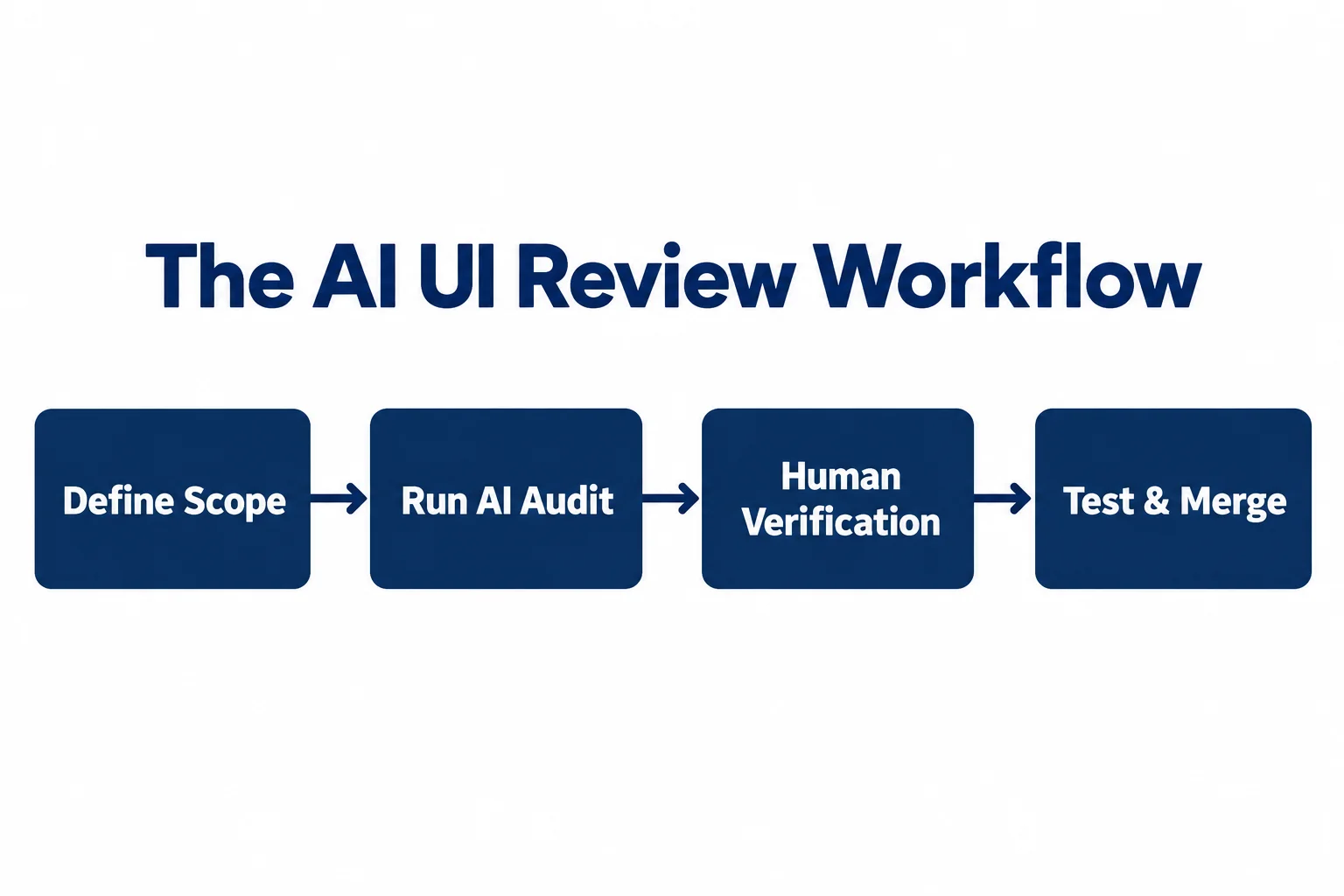
AI web design guidelines skills give coding agents a set of instructions for reviewing interface code. They can help identify defects, but the team still needs to verify the findings and test the changes.
This guide explains how to install Vercel’s web-design-guidelines skill, define a useful review, and check the result. Commands were checked against official documentation. The code examples are illustrative and have not been browser-tested for this article.
Key takeaways
- Define the review scope and supply your project’s design rules.
- Confirm that the agent loaded the skill and its guideline source.
- Verify findings before changing code. Separate defects from design preferences.
- Apply small fixes, then test the affected task in the browser.
- Record what was checked, what changed, and what remains unresolved.
In this guide
- Install and run a review
- Choose the right skill
- Define the checks
- Assess the findings
- Use the review prompts
- Review the code examples
- Validate the changes
- Manage team use
- Troubleshoot problems
- Use the checklist
What are AI web design guidelines skills?
AI agent skills vs. human design skills, prompts, and website builders
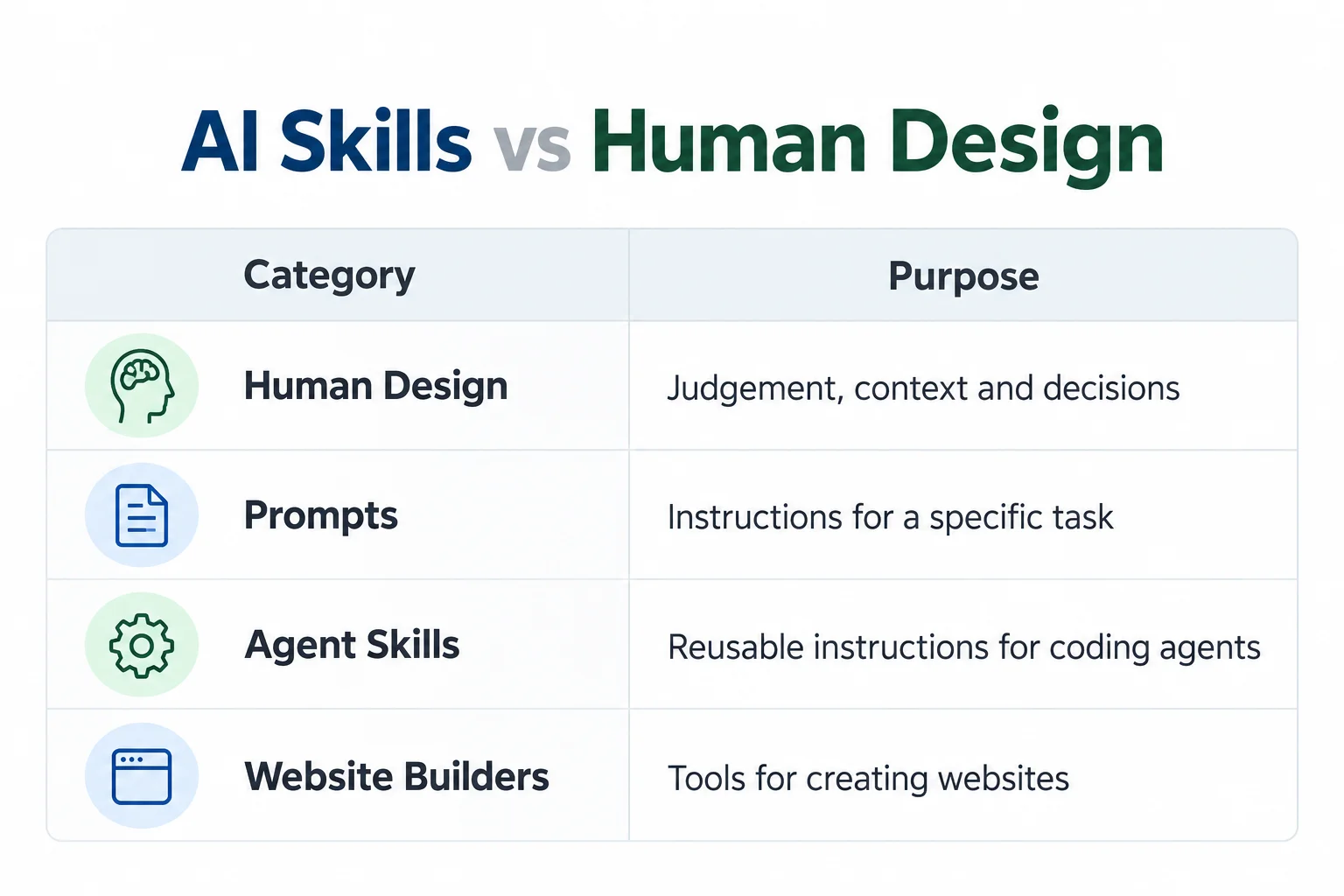
An agent skill is a reusable package of instructions, sometimes supported by references or scripts.
| Resource | Purpose |
|---|---|
| Human design skills | Understand users, assess options, and make design decisions |
| Prompt | Define the current task and its constraints |
| Agent skill | Supply reusable guidance for a type of task |
| Website builder | Assemble, manage, and publish pages |
A review skill needs project context. It cannot determine your audience, brand rules, or approval process from a component file.
What the web-design-guidelines skill does and what it cannot guarantee
Vercel’s official web-design-guidelines skill instructions tell the agent to retrieve interface guidelines, inspect specified files, and report findings with file and line references. The skill and its external guideline source are separate.
A source review can identify code problems. It cannot establish that the deployed website works across browsers, content states, and assistive technologies.
Who should use it: Frontend developers, designers, and teams reviewing AI-generated UI
Developers can use it before requesting a colleague’s review. Designers can use the findings to discuss implementation problems.
Website owners can request the same review, with a developer responsible for assessing proposed code changes.
Quick start: Install and run your first UI review
Prerequisites: Supported agent, project access, and Node.js for CLI installation
You need:
- Node.js and npm, including
npx. - A supported coding agent.
- Access to the relevant project files.
- Network access to retrieve the package and guidelines.
Check your local tools:
node --version
npm --version
If installation reports a compatibility error, check the current package requirements before changing Node.js.
Verify the official repository, skill name, and current installation instructions
Confirm the source before installation:
| Item | Identifier |
|---|---|
| Repository | vercel-labs/agent-skills |
| Skill | web-design-guidelines |
| Installer | skills CLI |
Check the official repository and current installation instructions.
Install from vercel-labs/agent-skills and select web-design-guidelines
From the intended project directory, run:
npx skills add vercel-labs/agent-skills \
  --skill web-design-guidelines
To target Claude Code:
npx skills add vercel-labs/agent-skills \
  --skill web-design-guidelines \
  --agent claude-code
The Skills CLI documentation says the CLI supports project and global installation. Review the proposed destination before installing.
Enable the skill in Claude Code or another supported coding agent
Confirm that the skill appears in your agent’s available skills. You can also inspect installations with:
npx skills listIf the agent does not recognise it, follow that agent’s reload or new-session procedure.
Run a first review and confirm that the agent loaded the guidelines
Start with one file:
Use web-design-guidelines to review
src/components/Header.tsx. Do not change files. Identify the skill and guideline sources you loaded. Report findings with file and line references. State what you could not inspect or retrieve.
Check the agent’s tool activity where available. Confirm that it opened the file and retrieved the guidelines.
Choose the right AI skill for your web design task
Comparison table: Web Design Guidelines, Frontend Design, UI Skills, and React Best Practices
| Skill or collection | Main use |
|---|---|
| Vercel Web Design Guidelines | Review existing interface code |
| Anthropic Frontend Design | Develop or revise visual direction and implementation |
| UI Skills | Apply guidance from a collection of focused interface skills |
| Vercel React Best Practices | Review React and Next.js performance patterns |
UI Skills is a collection. Name the specific skill before assessing its coverage.
Compare Vercel agent skills, Anthropic Frontend Design, and UI Skills before choosing a package. Read the instructions for the option you select.
When to use a UI review skill instead of a website builder or SEO audit
Use a user interface review to assess how people understand and operate a page.
Use a website builder to create and publish pages. Use an SEO audit to investigate search concerns such as crawling, indexing, and search intent.
A working interface still needs to be discoverable. Treat technical SEO as a separate part of the website’s requirements.
Combine complementary skills without creating conflicting instructions
Apply skills in stages:
- Define the audience, task, and approved design.
- Build or adjust the interface.
- Review interaction and accessibility.
- Investigate relevant performance concerns.
- Test the result.
Require the agent to flag conflicts with project instructions before changing the implementation.
Core web design guidelines your AI should check
The following checks form a broader review brief. Some need browser access or separate tools.
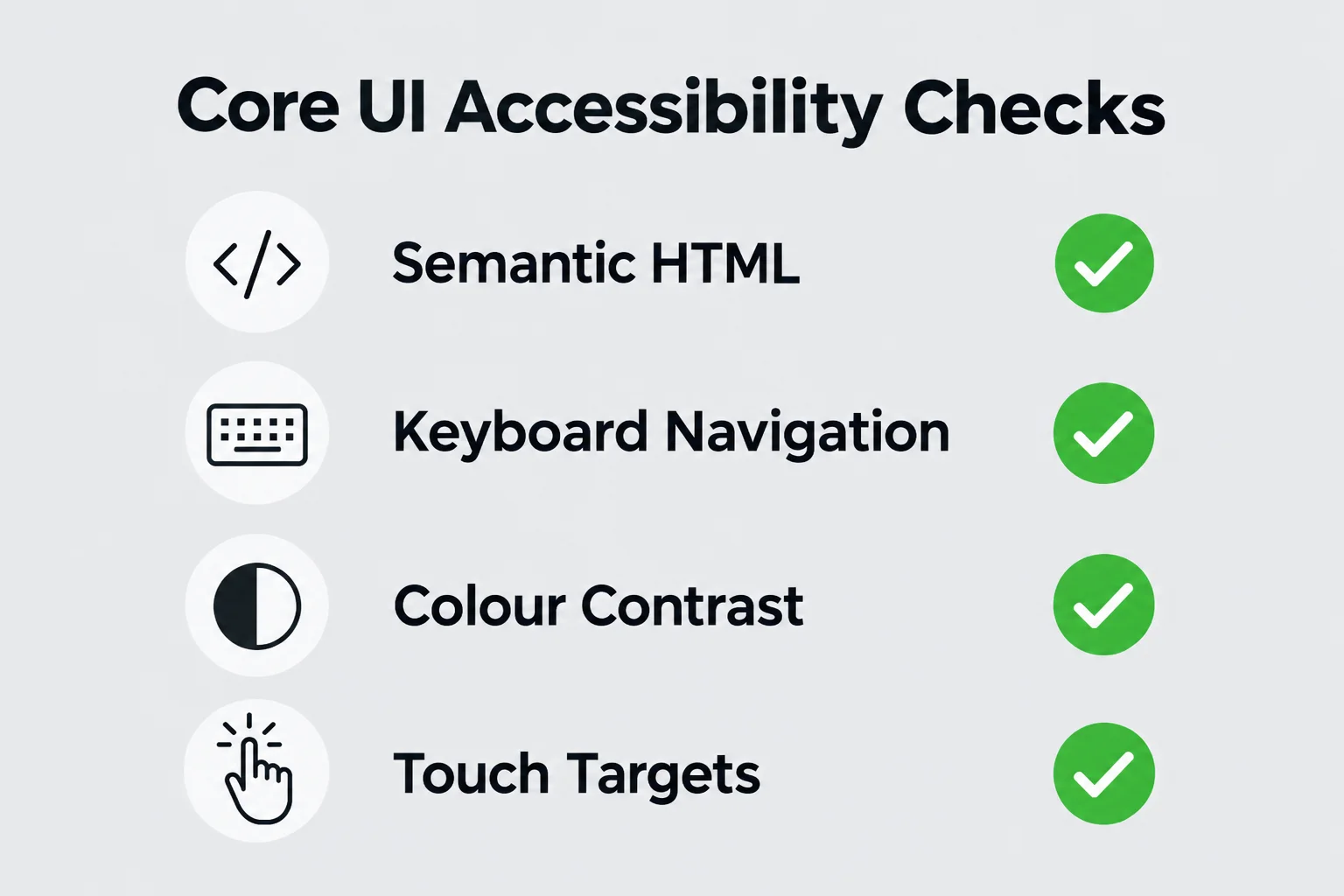
Semantic HTML, accessible names, and appropriate ARIA usage
Use native HTML elements for their intended purpose. Check that every control has a meaningful accessible name.
ARIA, short for Accessible Rich Internet Applications, adds semantics used by assistive technologies. Apply it where needed, with native HTML as the starting point.
Keyboard navigation, visible focus, and focus management
Complete the task with a keyboard.
Check focus order, visibility, and movement when panels open or close. Hidden navigation must not leave invisible links in the tab sequence.
Colour contrast, typography, and readable content
Measure contrast against the actual background.
The WCAG 2.2 contrast requirements specify at least 4.5:1 for normal text and 3:1 for qualifying large text, subject to exceptions. Also inspect spacing, line length, and instructions.
Responsive layouts, zoom support, and touch targets
Test narrow screens, enlarged text, and browser zoom. Look for clipped controls and overlapping content.
WCAG 2.2’s Target Size (Minimum) criterion uses 24 by 24 CSS pixels at Level AA, with exceptions. Check target size and spacing.
Forms, labels, validation, and actionable error messages
Check labels, expected input, validation, and recovery.
People should know what went wrong and how to correct it. Preserve entered information after recoverable failures.
Buttons, links, navigation, and predictable interactions
Use buttons for actions and links for destinations.
Check labels, browser navigation, and recovery from destructive actions.
Loading, empty, error, and success states
Inspect each state. The interface should explain what is happening, what happened, or what the person can do next.
Animation, reduced motion, and rendering performance
Check reduced-motion behaviour and whether animation delays input.
For server-rendered applications, test hydration: the stage when client-side code attaches behaviour to the page. Controls should retain their input and state.
Images, layout stability, and Core Web Vitals considerations
Reserve space for media and check whether loading moves nearby content.
The Web Vitals documentation describes how to measure loading performance, responsiveness, and visual stability. Code changes alone do not establish an improvement.
Design tokens, visual hierarchy, and brand consistency
Compare colours, typography, spacing, and component states with the approved design system.
Ask the reviewer to explain the effect of a deviation. A different spacing value may be intentional.
How to turn AI review findings into reliable fixes
Define the review scope: Components, pages, user journeys, and exclusions
Name the files, journey, and permitted actions:
Review mobile navigation and enquiry submission. Include invalid input and server errors. Exclude checkout and account pages. Do not edit files.
For WordPress, distinguish theme code, custom components, builder output, and rendered pages. Theme files may omit content and settings stored in the database.
Provide brand rules, design tokens, and project-specific constraints
Supply approved design references, shared components, supported browsers, and dependency restrictions.
State which content and behaviours must remain intact. These constraints belong in the development scope.
Request file references, rule citations, severity, and suggested fixes
Require findings that a developer can assess:
| Field | Required information |
|---|---|
| Location | File, line, and affected state |
| Evidence | Code or reproduced behaviour |
| Basis | Guideline, standard, or project requirement |
| Impact | Who is affected and what fails |
| Priority | Urgency and reason |
| Fix | Smallest practical correction |
| Validation | How to check the change |
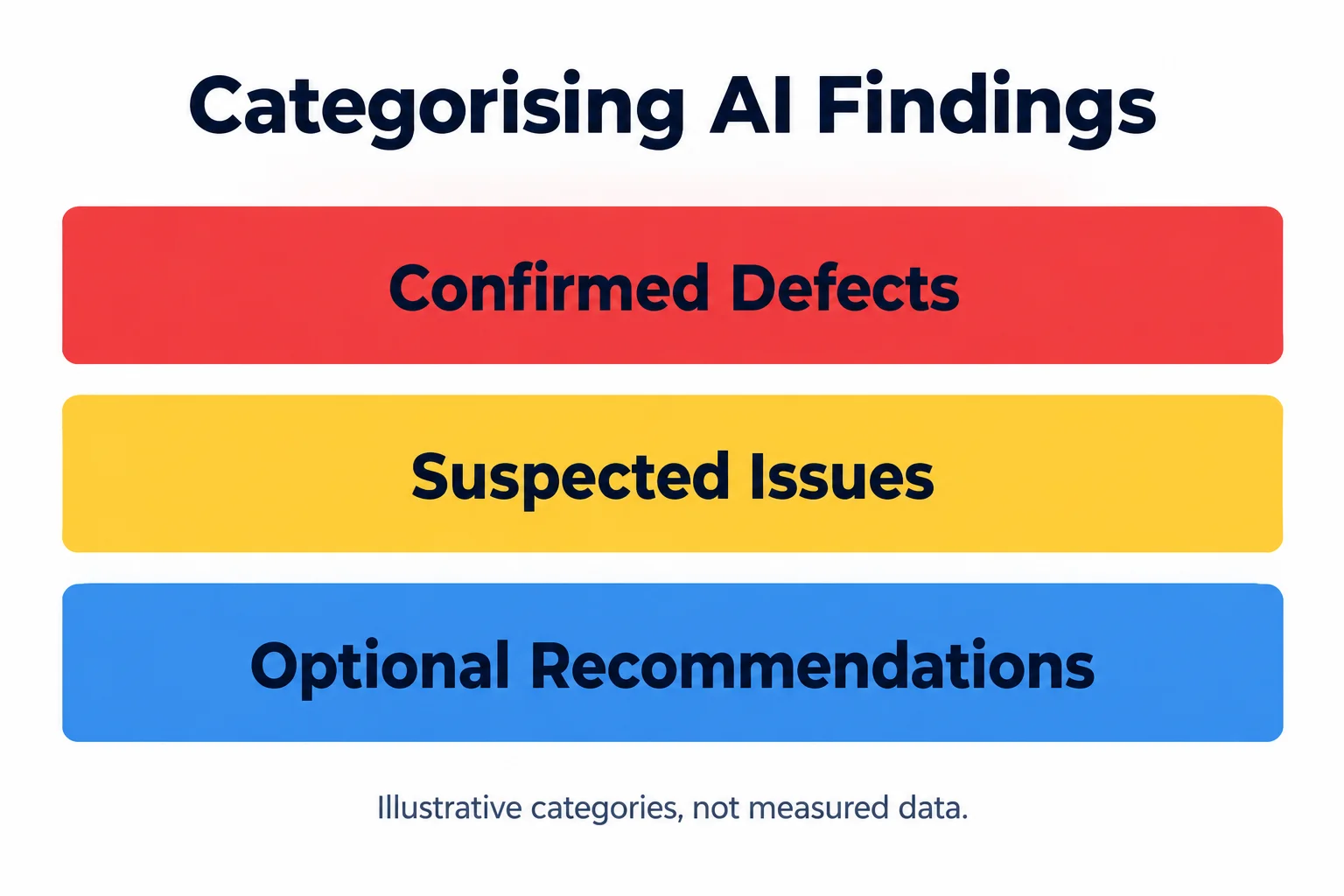
Separate confirmed defects from subjective design recommendations
Label findings as:
- Confirmed: Supported by evidence.
- Suspected: Requires another check.
- Optional: A design recommendation.
Keep preference out of defect severity. A keyboard trap and a proposed colour change require different decisions.
Prioritise blockers, apply small changes, and recheck for regressions
Fix failures that prevent task completion first.
Keep changes narrow. Retest the affected journey and neighbouring states, especially when changing a shared component.
Copy-and-paste prompts for AI-assisted UI reviews
Audit a page without changing any code
Use web-design-guidelines to review [files] and [route], where browser access is available. Make no changes. Identify sources and files inspected. Report actionable findings with evidence, location, user impact, priority, and proposed fixes. Separate confirmed defects, suspected issues, and optional recommendations. State testing limitations.
Fix accessibility issues while preserving the existing design
Review [component or journey]. Preserve approved design, content, and behaviour. Apply the smallest fixes needed for confirmed accessibility defects. Reuse existing components and tokens. Test affected keyboard, focus, and error states. Flag decisions requiring design or product input.
Review a pull request and report only newly introduced issues
Review the diff against [base branch]. Apply web-design-guidelines where relevant. Report only actionable issues introduced by this change, with changed-line references and a failure scenario. Read surrounding code for context. Exclude existing issues and styling preferences.
Replace generic AI styling with brand-specific design decisions
Review [page] against [brand guide], [tokens], and [reference components]. Identify choices that do not support the audience, content, or approved brand. Propose changes with reasons before editing. Preserve content and functionality. Assess mobile, desktop, focus, and reduced-motion states.
Before-and-after examples: Findings, code changes, and validation
These examples explain possible corrections. They are not reports from a tested project.
Example 1: Fix an icon button’s accessible name and focus state
Finding: A close button lacks an accessible name.
Before:
<button>
  <span aria-hidden="true">×</span>
</button>
After:
<button
  type="button"
  class="close-button"
  aria-label="Close enquiry panel"
>
  <span aria-hidden="true">×</span>
</button>
.close-button:focus-visible {
outline: 3px solid var(--focus-ring);
outline-offset: 3px;
}Define --focus-ring using a suitable project colour.
Check: Inspect the accessible name, activate the button with a keyboard, and confirm where focus goes after the panel closes.
Example 2: Improve form labels, validation, and error recovery
Finding: A field uses placeholder text as its label.
Before:
<input placeholder="Email">
<p>Invalid input</p>
After, showing an invalid state:
<label for="email">Email address</label>
<input
  id="email"
  name="email"
  type="email"
  autocomplete="email"
  required
  aria-invalid="true"
  aria-describedby="email-error"
>
<p id="email-error">
  Enter an email address such as name@example.com.
</p>
Update the invalid state and error association through application logic. Use a tested announcement or focus strategy.
Check: Submit empty, malformed, and valid values. Test server rejection and confirm that entered information is preserved. Retain server-side validation.
Example 3: Make a navigation menu work on mobile and with a keyboard
Finding: A clickable icon does not expose its expanded state.
Before:
<span onclick="toggleNavigation()">☰</span>After, showing the collapsed state:
<button
  type="button"
  aria-expanded="false"
  aria-controls="primary-navigation"
>
  Menu
</button>

<nav id="primary-navigation" aria-label="Primary" hidden>
  <a href="/services/">Services</a>
  <a href="/contact/">Contact</a>
</nav>
Synchronise hidden and aria-expanded in the interaction logic. Handle viewport changes explicitly.
Check: Open the navigation with Enter and Space, follow its links, close it, and resize the viewport. Hidden links should not receive keyboard focus.
The WAI disclosure navigation example shows a navigation pattern that does not need the ARIA menu role. Modal drawers need additional focus handling.
Example 4: Improve a large list without breaking accessibility
Finding: A results view renders every record, making updates expensive.
Before:
<ul>
  {filteredItems.map((item) => (
    <li key={item.id}>{item.name}</li>
  ))}
</ul>
Pagination can reduce the number of rendered records:
const start = (page - 1) * pageSize;
const visibleItems = filteredItems.slice(start, start + pageSize);

<ul>
  {visibleItems.map((item) => (
    <li key={item.id}>{item.name}</li>
  ))}
</ul>
A complete implementation needs page controls, a result summary, empty-state handling, and appropriate focus behaviour. Reset or clamp the page when filtering changes the available results.
This reduces rendering work. It does not fix an expensive filtering algorithm.
React’s useMemo reference explains that the value recalculates when its dependencies change, so it cannot avoid filtering simply because the search query changes.
Check: Measure filtering and rendering separately with representative data. Test pagination with a keyboard and screen reader.
If using virtualisation, which renders only part of a collection at a time, also test focus retention and access to unrendered results.
Validate AI recommendations with automated and human testing
Use ESLint, axe, Lighthouse, and browser tests for complementary checks
| Tool | What it checks |
|---|---|
| ESLint and relevant plugins | Configured source-code rules |
| axe | Automatically detectable accessibility issues |
| Lighthouse | Page-level audits under recorded conditions |
| Browser tests | Specified interactions and expected outcomes |
Coverage depends on configuration and the states tested. Lighthouse’s accessibility score excludes manual audits. Review the ESLint concepts, axe-core, and Lighthouse scoring guidance for what each tool covers.
Test keyboard access, screen readers, zoom, and real devices
Test the complete task, including failure and recovery.
For an enquiry form, find the page, submit incomplete information, correct the errors, and confirm successful submission. Repeat relevant steps with a keyboard, screen reader, enlarged content, and representative devices.
Distinguish guideline checks from a complete WCAG conformance evaluation
Record the pages, states, and requirements examined. Do not describe a limited review as a complete accessibility evaluation.
See W3C’s evaluation guidance and Ulement’s WCAG 2.2 accessibility guide for the broader context.
Measure progress with issue counts, task completion, and performance data
Track confirmed defects, resolved findings, and regressions.
Compare issue counts only when review scope is consistent. Include task completion and performance measurements where relevant.
Use web design guideline skills safely across a team
Review skill instructions, external sources, and permissions before installation
Read the package and identify the access it requires.
The external guideline source includes editorial and implementation preferences that may differ from your project. For web-design-guidelines, inspect both the skill and its external rules.
Protect private code, credentials, and customer data
Follow your organisation’s approved data-handling arrangements.
Use test accounts and synthetic data where practical. Give the agent access to what the review requires.
Record skill versions and guideline sources for reproducible reviews
Record:
- Project commit and review date.
- Agent and model.
- Skill revision.
- Guideline source and revision.
- Files, routes, and states reviewed.
- Testing environment and limitations.
The skill version alone does not identify a changing external rule set.
Add pull request checks with clear human approval boundaries
Define whether AI findings are advisory or can block a merge.
Assign someone to assess disputed findings and approve exceptions. Use repeatable automated checks for defects that can be tested reliably.
Troubleshooting installation, activation, and review quality
The skill is installed but the agent does not use it
Check the target agent and installation scope. Request the skill by name and specify a file.
Follow the agent’s documented refresh procedure if necessary.
Installation fails or the agent cannot retrieve the guidelines
Identify the failed step: installation, repository access, or guideline retrieval.
Check the error before changing configuration. If using a local guideline snapshot, record its revision.
Recommendations conflict with your framework, design system, or other skills
Ask for the evidence and intended outcome.
Choose the implementation that fits the project and document justified exceptions.
The review misses issues or produces false positives
Supply the affected state and reproduction steps.
Require verification against surrounding code or browser behaviour. Record why unsupported findings were rejected.
Reusable AI web design review checklist
Before review: Scope, sources, permissions, and baseline
- Define files, routes, tasks, and exclusions.
- State whether edits are allowed.
- Supply project rules and constraints.
- Verify skill and guideline sources.
- Record the project revision.
- Prepare representative content and test data.
Before merge: Accessibility, responsive behaviour, performance, and human sign-off
- Verify findings and review the fixes.
- Test keyboard access, focus, and recovery.
- Check mobile layouts and enlarged content.
- Inspect loading, empty, error, and success states.
- Run relevant automated checks.
- Measure affected performance.
- Record limitations and reviewer approval.
Frequently asked questions
Are Web Design Guidelines skills free to use?
Vercel’s official agent-skills repository uses the MIT licence. Agent subscriptions and model usage may have separate costs.
Do these skills work only with Claude Code?
No. The Skills CLI documentation lists support for several agents, including Claude Code, Codex, and Cursor. Installation and activation depend on the agent.
Can you use them with React, Next.js, Tailwind CSS, or plain HTML?
Yes, where the agent can inspect the relevant source. Adapt framework-specific recommendations to the project.
For WordPress and visual builders, include rendered-page inspection.
Can an AI design skill replace a designer or accessibility audit?
It can identify issues for assessment. It cannot establish user needs, approve design decisions, or prove complete accessibility conformance.
Can nontechnical website owners use these skills?
Yes. Request affected pages, user impact, proposed actions, and evidence in plain language. Have a developer assess code changes before release.
How often should you update the skill and rerun reviews?
The Skills CLI documentation describes the skills check and skills update commands. Check for updates before a review cycle and inspect changes before adopting them.
Repeat relevant checks after changes to navigation, forms, shared components, dependencies, or important content.
Give each accepted finding an owner, a correction, and a test. That makes the review usable by the team responsible for the website.
For help assessing an existing website or defining the work required, discuss your requirements with Ulement.
Documentation checked: 18 October 2026. See the official repository and Skills CLI documentation linked above.