
A website outage can come from DNS, hosting, a certificate, WordPress, a recent deployment or a single integration. Confirm what is affected before changing files or restoring a backup. Record the start time, error and recent changes, then choose the smallest safe action that restores service.
If the site handles orders, bookings or critical information, tell the business owner and hosting provider promptly. Keep a record of decisions and customer impact. If you suspect a compromise, follow the incident response process and preserve evidence before cleanup.
1. Confirm the scope
Check the site from another network and device. Test the root domain and a known page, and compare HTTP and HTTPS only if you can do so safely. Note whether the error is a browser DNS message, timeout, certificate warning, server error, blank page, redirect loop or WordPress error. Check whether the problem affects every visitor or only a logged-in session.
Use your host’s service-status page and ask support whether the server, account limits, database or network is affected. Do not repeatedly refresh checkout or submit forms while the service is unstable.
2. Check the domain and hosting path
Verify that the domain has not expired and that the authoritative DNS records still point to the intended service. Check recent DNS, nameserver, CDN, firewall and hosting changes. DNS caches can take time to update, so record the actual resolver and response rather than making repeated changes.
Ask the host to check resource limits, web-server and PHP errors, database availability, disk space and account suspension. A 5xx response commonly indicates a server-side problem, but the status alone does not identify its cause. A certificate warning should be investigated at the certificate and hostname level; do not tell visitors to bypass it.
3. Review the last known change
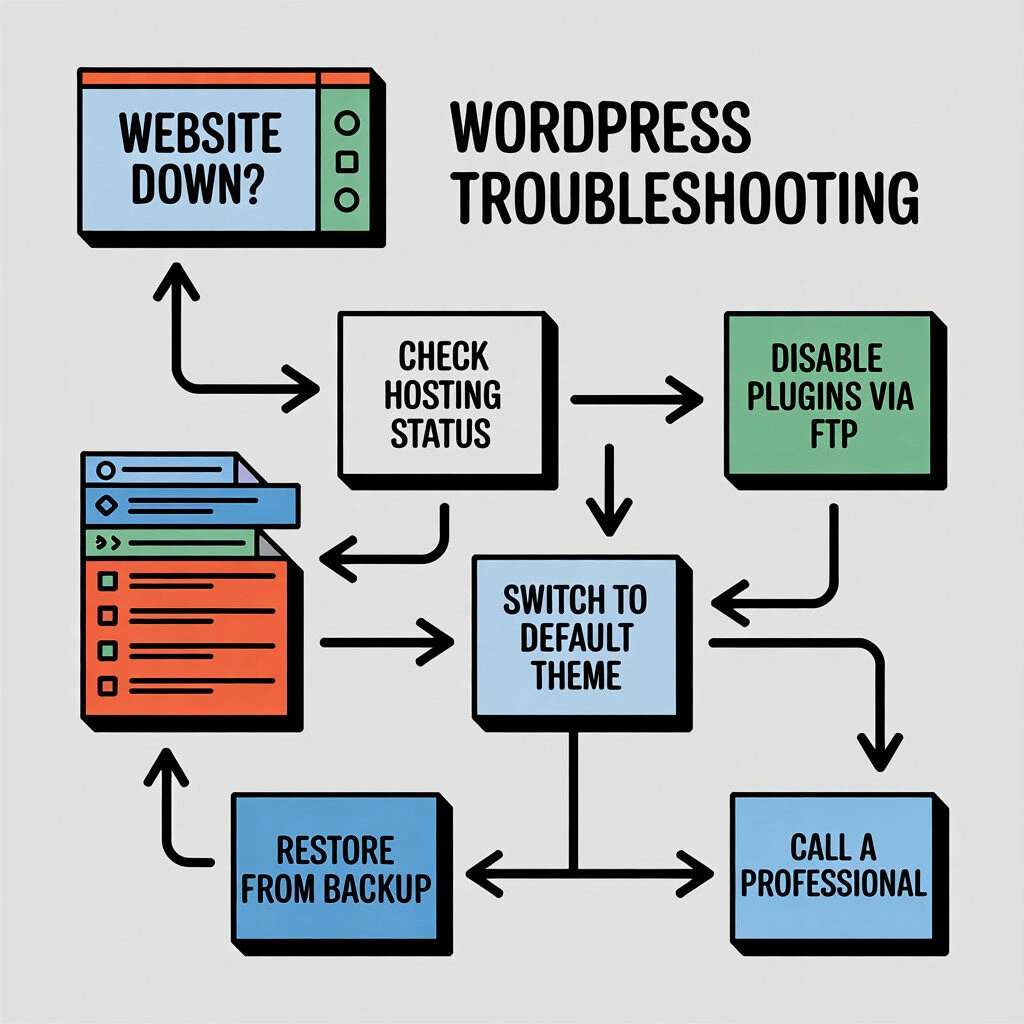
Compare the outage time with plugin, theme, WordPress, PHP, configuration, DNS and deployment changes. If the site owner has a tested rollback procedure, use it for the specific change that coincides with the failure. Avoid disabling every plugin or editing live files without a backup and a clear way to restore the prior state.
If a WordPress fatal error is visible, use the host’s logs and WordPress debugging guidance. Keep debugging output private and turn off public error display. A maintenance or recovery mode can help, but it does not fix a server or DNS fault.
4. Restore service safely
Before a rollback or repair, capture the current files, database and relevant logs. Confirm which backup is being restored, when it was taken and what orders or content created since then might be lost. Restore first in staging when practical. If the incident is security-related, do not restore a compromised backup as if it were clean.
Make one controlled change at a time and record it. Do not run unfamiliar SQL, recursively change file permissions or replace core files without checking versions and the host’s recovery plan. Escalate if the site’s data integrity or access is uncertain.
5. Verify recovery
Test important pages, login, forms, email delivery, checkout or booking, payment callbacks, search, scheduled tasks and third-party integrations. Confirm HTTPS, redirects, canonical URLs, analytics and monitoring. Check server logs for recurring errors and ask a second person to test the main user journey.
If Google Search Console reports a security problem, resolve the issue and follow Google’s review process. Reopening the website does not guarantee that search warnings or indexing will clear immediately.
Reduce the next outage’s impact
Keep current off-site backups and test restores. Maintain a list of domain, DNS, hosting and application owners, plus emergency contacts. Test major updates on staging and use monitoring that reports the failing layer. Agree in advance who can authorise rollback and what evidence must be retained.
Common questions
Should I restore the latest backup immediately?
Not until you know the cause and the backup’s state. A recent backup can contain the same fault or an active compromise. Check its date, integrity and likely data loss, then test the restore in a controlled environment where possible.
Does clearing cache fix a WordPress outage?
It can correct a stale page after a deployment, but it will not repair DNS, an unavailable server, a failed database or compromised files. Identify the failing layer first.
When should I call a WordPress specialist?
Escalate if the outage affects transactions, involves security or data risk, recurs after rollback, or cannot be isolated without making risky live changes. Ask for the evidence, scope, recovery plan and post-repair checks.
Sources checked on 20 October 2026: WordPress debugging, WordPress recovery mode, and Google guidance for site moves.