
Downgrading WordPress core can help confirm whether a recent update triggered a problem, but it is not a long-term fix. Older versions may lack later security fixes and may not work with current plugins, themes or hosting software. First identify what changed and whether the issue comes from core, an extension, custom code or the environment.
Before changing versions
- Record the current WordPress, PHP, theme and plugin versions, the exact error and when it began.
- Check logs and reproduce the issue. Test likely plugin or theme conflicts on staging rather than disabling components on a live shop or service site.
- Create a complete backup of both files and database. WordPress documentation explains that both are needed for a full restore. Keep a separate copy and verify that it can be restored.
- Agree the recovery owner, maintenance window and rollback path. If the site handles payments, personal data or critical services, involve the host or a WordPress specialist.
See the guide to creating a WordPress staging site before testing risky changes.
Safer recovery options

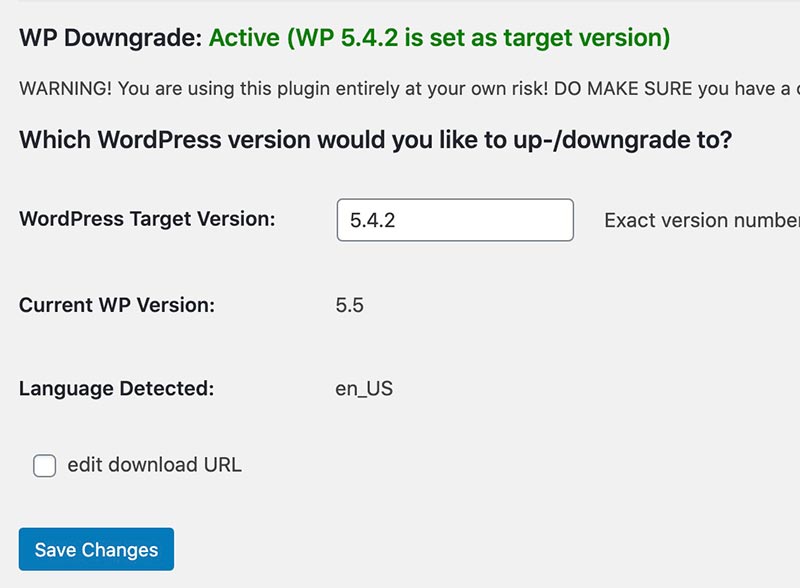
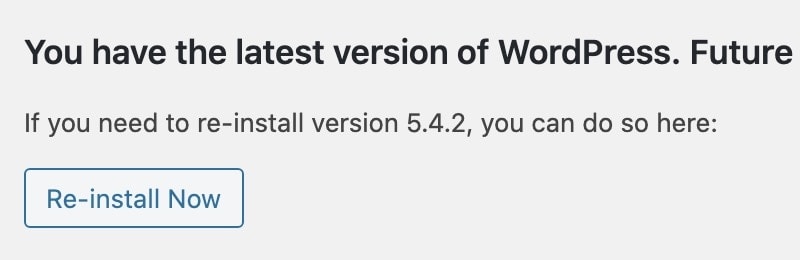
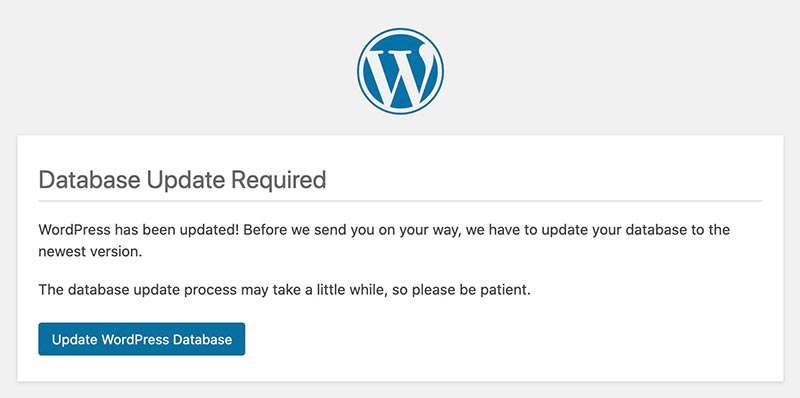
Prefer a targeted fix: update or replace the incompatible extension, correct a configuration issue, or restore a known-good backup in staging. If a downgrade is necessary to recover service, use a clean package from the official WordPress release archive and follow a documented process. Do not use an unofficial download or leave a version-pinning plugin in place without an owner and removal date.
WordPress’s update documentation recommends using the latest version and describes restoring a backup after a failed update. Test the restored site thoroughly: login, publishing, forms, checkout, integrations, scheduled tasks, backups and error logs. Then identify the underlying cause and plan to return to a supported release.
Do not downgrade directly on a live site by default
A core downgrade can interact with database changes, extensions and cached files. If staging is unavailable and recovery is urgent, take a verified backup first and have a named operator ready to restore it. Document every action and validate the full customer journey after recovery.
When should I ask for specialist help?
Escalate if the problem affects payments, security, personal data, a multisite network or infrastructure that you cannot safely test and restore. A production rollback is an incident decision, not a routine update method.