Quick answer: Converting WPBakery to Gutenberg is a manual rebuild, not a one-click conversion. The safe route is to inventory the existing templates, rebuild them on staging, preserve every important URL and metadata field, and remove shortcode residue only after the replacement pages pass quality assurance.
Due to Core Web Vitals, other than convert WPBakery to Elementor, I also to started to convert WPBakery to Gutenberg.
Key Takeaways:
- Rebuild on staging so the live website remains available during the migration.
- Preserve URLs, metadata, forms and analytics before changing the page builder.
- Remove WPBakery and its shortcodes only after the Gutenberg version is tested.
Can I change from WPBakery (FKA Visual Composer) to Gutenberg?
Yes. Rebuild and test the pages on staging, then retire WPBakery after the replacements pass validation. Performance depends on the theme, assets, hosting and third-party scripts; switching editors alone does not guarantee a PageSpeed score.
10 steps to convert WPBakery to Gutenberg
Inventory the existing layouts and rebuild them with Gutenberg on staging. Keep WPBakery available as a reference until the replacement pages are tested. A lightweight theme such as Blocksy is one option; duration depends on the templates, content and functionality that must be preserved.
Step 1. Back up the website and create staging
Take a recoverable backup and create a staging copy. Keep the live website available while rebuilding, and restrict staging access so it does not become an indexed duplicate. Record the existing URLs, metadata, forms and tracking before changes begin.
Step 2. Inventory WPBakery and theme dependencies
Identify which templates, widgets, forms and shortcodes depend on WPBakery or the existing theme. Keep those dependencies installed during the rebuild so you can compare the replacements with the source.
Step 3. Preserve content stored in shortcodes
Record the text, links, media and layout stored inside each shortcode before rebuilding. Do not run bulk shortcode removal on the source content. Clean a replacement only after its Gutenberg version has passed content and layout checks.
A tool such as Shortcode Cleaner Pro can help inspect residue. Test any cleanup on staging with a backup and compare the content afterwards; do not assume every shortcode can be deleted safely.
https://youtu.be/dXVZ5bSUduc
Step 4. Rebuild header & footer with lightweight theme
Would suggest use lightweights theme like Blocksy, GeneratePress or Kadence Theme.
Step 5. Rebuild pages with Gutenberg block editor
With the fixability of Kadence Block Pro, it allow you to create more advanced layouts with flexible grids, it makes the design process much more quickly.
Another Block Editor you should not miss is Gutenberg Page Building Toolkit – EditorsKit, it works like TinyMCE for Classic editor, but with way more advanced functions.
Step 6. Make use of Code Snippets
Some functions you don’t really need a plugin, and you can use code snippets to replace it. Below are some sites for code snippets.
Step 7. Use Gutenberg to handle the post
Always Use Gutenberg to handle post.
Step 8. Validate replacements, then remove unused dependencies
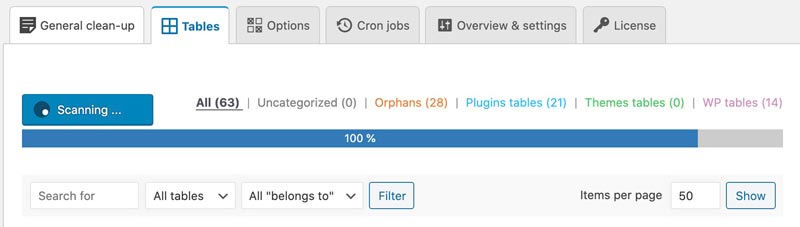
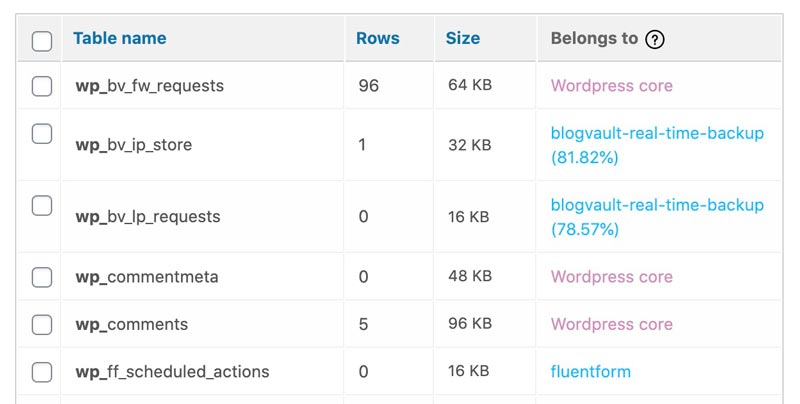
Test the Gutenberg pages, forms, tracking and responsive layouts before deactivating WPBakery and unused theme plugins on staging. Re-test after removal and retain a rollback copy. Only remove shortcode residue and database tables once you have confirmed that no required content or functionality depends on them. If using Advanced Database Cleaner Pro, review each proposed deletion and keep a recoverable backup.
Step 9. Regenerate all the thumbnails
You will need to regenerate thumbnails when you change theme, recommend to use reGenerate Thumbnails Advanced, it helps to remove not-used-anymore thumbnails, which is super useful in this case. it integrated with ShortPixel Image Optimizer.
Step 10. WordPress Speed Optimisation
For WordPress Speed Optimisation, I use FlyingPress & perfmatters
You may check up my other post WordPress Speed Optimisation to score 100 on Google PageSpeed Insights
These are few more results of convert WP Bakery to Gutenberg.
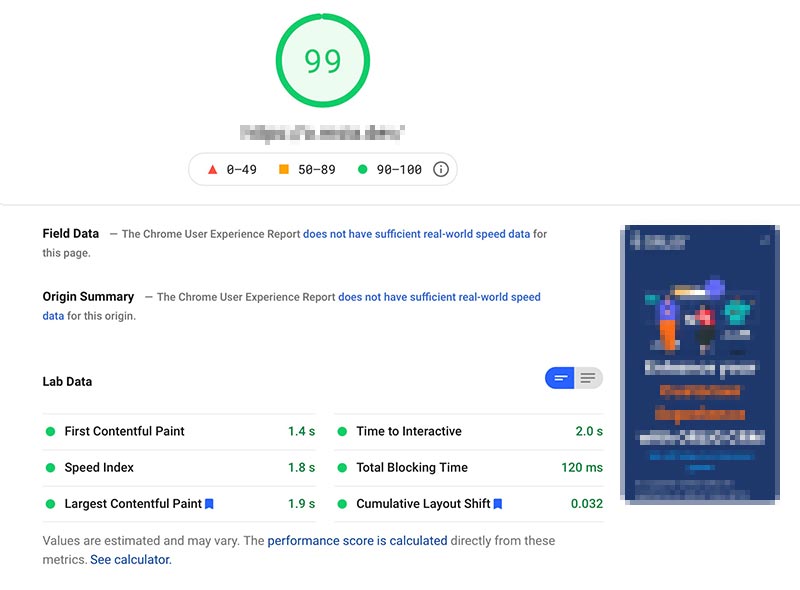
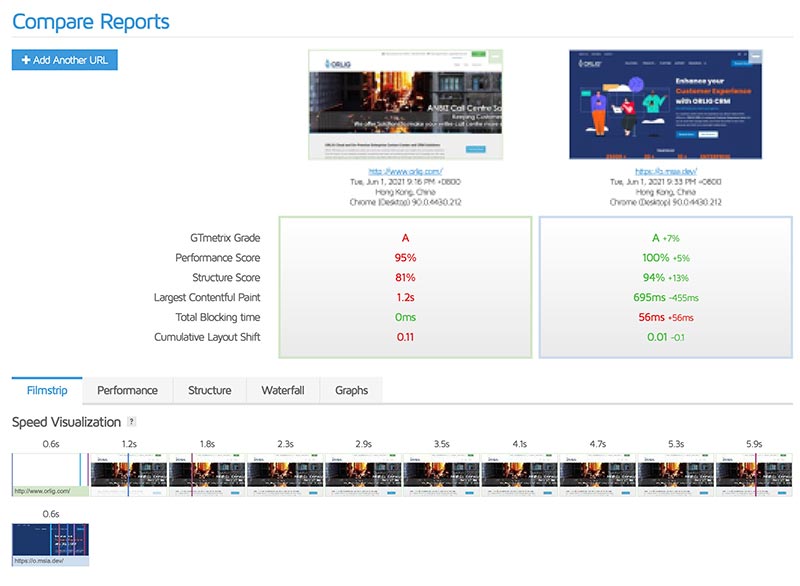
Convert WPBakery + Nitropack to Gutenberg
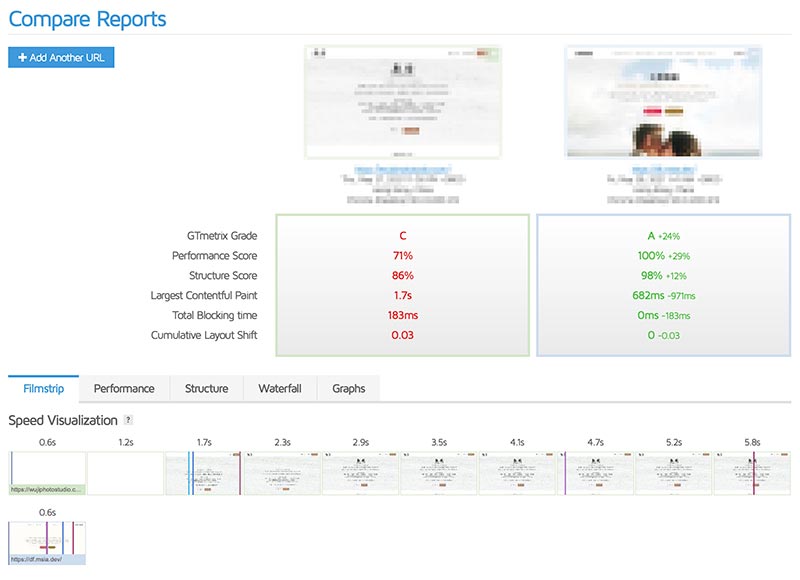
This is another client that convert from ThemeForest Theme with WPBakery + Nitropack to Blocksy Theme & Kadance Blocks. The website is totally redesigned to focus on client’s profession.
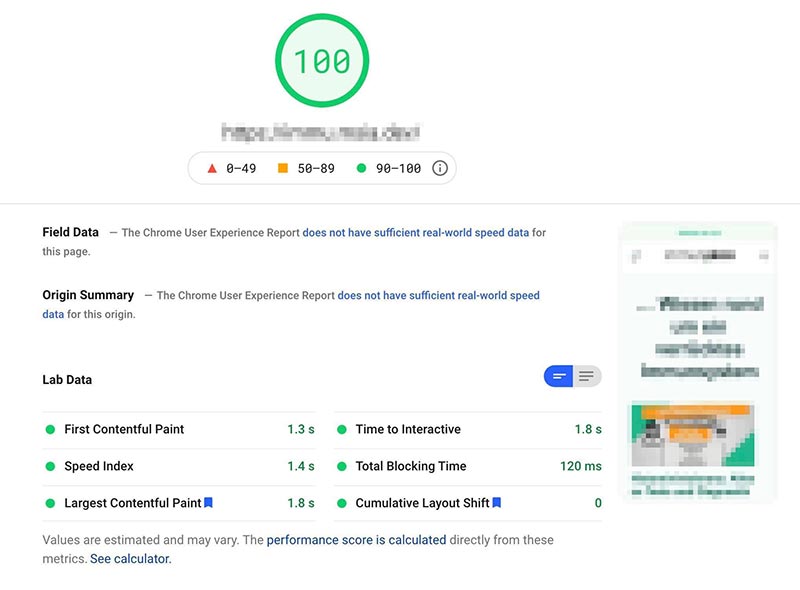
On GTMEtrix test, the performance is better than original website with Nitropack.
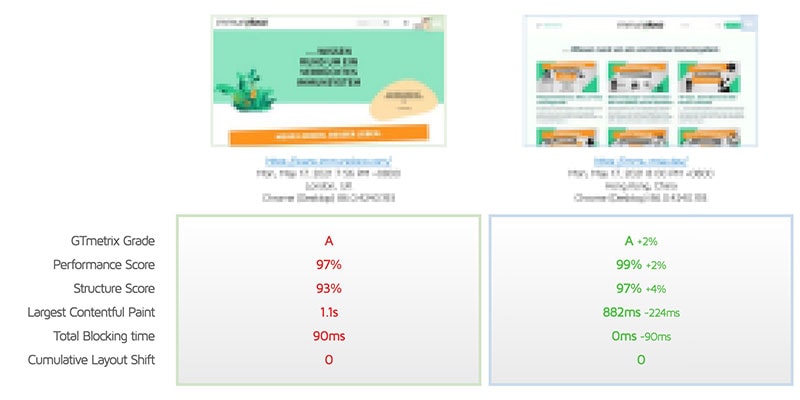
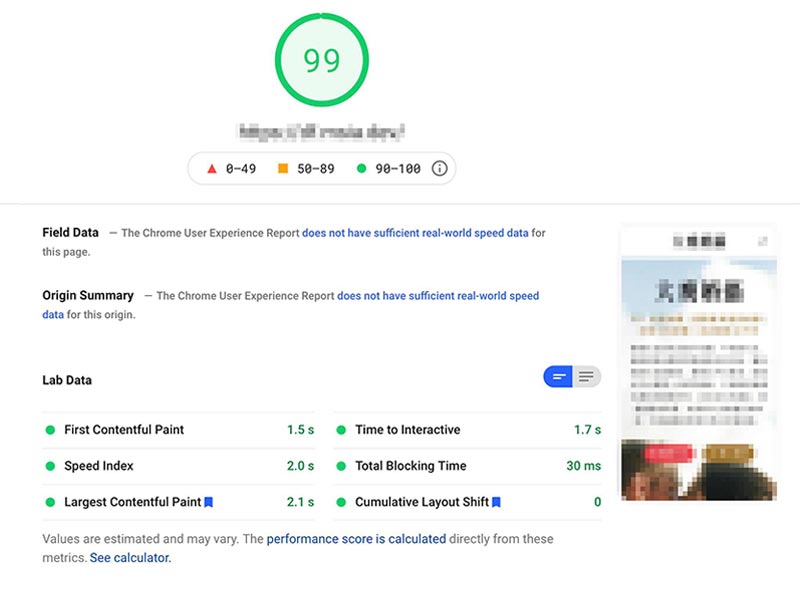
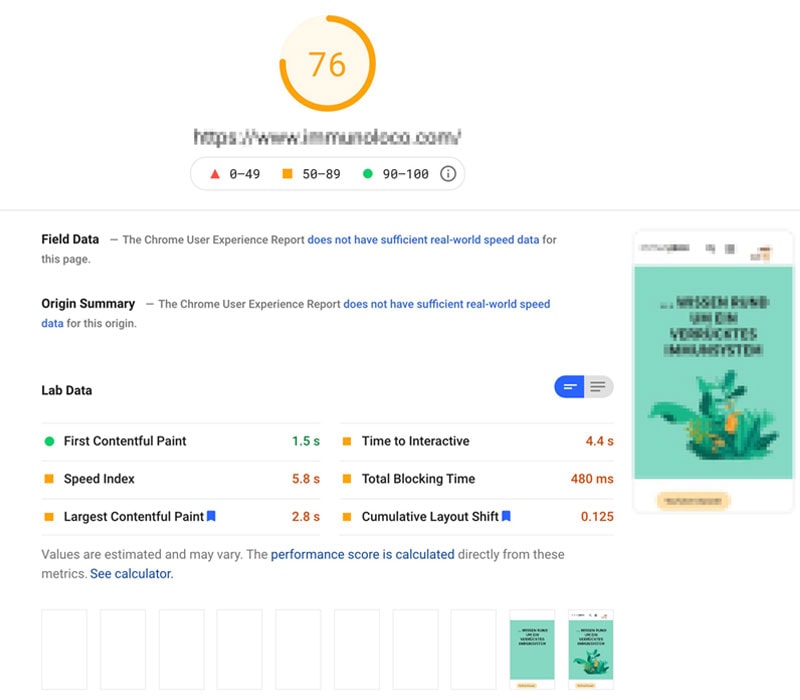
In the reported PageSpeed Insights test for this project, the original website scored 76 and the rebuilt version scored 100. Those are test snapshots, not a guarantee for another website or a substitute for field performance data.
If you need help to convert WPBakery to Gutenberg, contact Ulement to agree the scope, acceptance checks and commercial terms before the rebuild.
Photo by La-Rel Easter on Unsplash
Related Ulement guides: Convert Elementor to Gutenberg · WPBakery to Elementor migration.
Conclusion
Converting WPBakery to Gutenberg is a rebuild, not a conversion button. Work on staging, preserve the public URLs and content, test the replacement pages, then remove WPBakery and its shortcode residue. The shortcut is usually what leaves the mess behind. Contact Ulement if the rebuild needs migration and SEO controls as well as new page templates.
Frequently Asked Questions
Can WPBakery pages be converted to Gutenberg automatically?
Not reliably. WPBakery stores layouts as shortcodes, while Gutenberg uses blocks. A controlled rebuild gives you a chance to remove shortcode residue and check each template.
Should the URLs change during the rebuild?
Keep the existing public URLs wherever possible. If a URL must move, use a direct permanent redirect and update the internal links.
When can WPBakery be removed?
Remove it after the Gutenberg pages, forms, tracking and responsive layouts have been tested and a current backup exists.
For the delivery scope behind this issue, see Ulement’s custom WordPress development service.